
E-commerce plugins
PrestaShop module
Install and configure the official PrestaShop payment module with native OAuth, DPoP-bound tokens, and MakePay webhooks.
Overview
MakePay for PrestaShop lets merchants accept crypto payments through hosted MakePay checkout. Customers choose the MakePay payment method during PrestaShop checkout, are redirected to MakePay to pay, and return to the store after payment.
The module creates a MakePay payment link for each PrestaShop order and listens for signed MakePay webhooks so order state changes happen automatically.
Before you start
You will need:
- PrestaShop 8.0 or newer, including PrestaShop 9.x
- PHP 7.4 or newer with OpenSSL enabled
- An HTTPS Back Office and checkout URL
- A PrestaShop employee account that can configure modules
- A MakeCrypto company with MakePay settlement configured
PHP Sodium is recommended. When it is available, the module uses it with PrestaShop cookie secrets to encrypt connection details, webhook secrets, and manual API-key fallback credentials.
Set up MakeCrypto
Complete merchant setup before connecting PrestaShop.
- Sign in at https://www.makecrypto.io and select the company that should receive PrestaShop payments.
- Open Wallet > Balances, then configure settlement currency, chain, and destination wallet.
- Open Merchant > Payment settings and review payment fee and redirect behavior.
- Optional: open Settings > Merchant to add merchant branding, support email, checkout colors, hosted payment theme, and custom domains.
You do not need to create a developer application manually. The official PrestaShop module creates a store-specific connection when you click Connect MakePay.
Install the module
Download the latest official module ZIP:
https://plugins.makecrypto.io/downloads/prestashop/latest.zip
Then install it in PrestaShop:
- Open Back Office > Modules > Module Manager.
- Click Upload a module and choose the downloaded
makepay.zip. - After installation, click Configure.
- Keep Authentication set to the default connected mode.
The ZIP root is makepay/ and the main module file is makepay.php, matching
PrestaShop module packaging expectations.
Connect your store
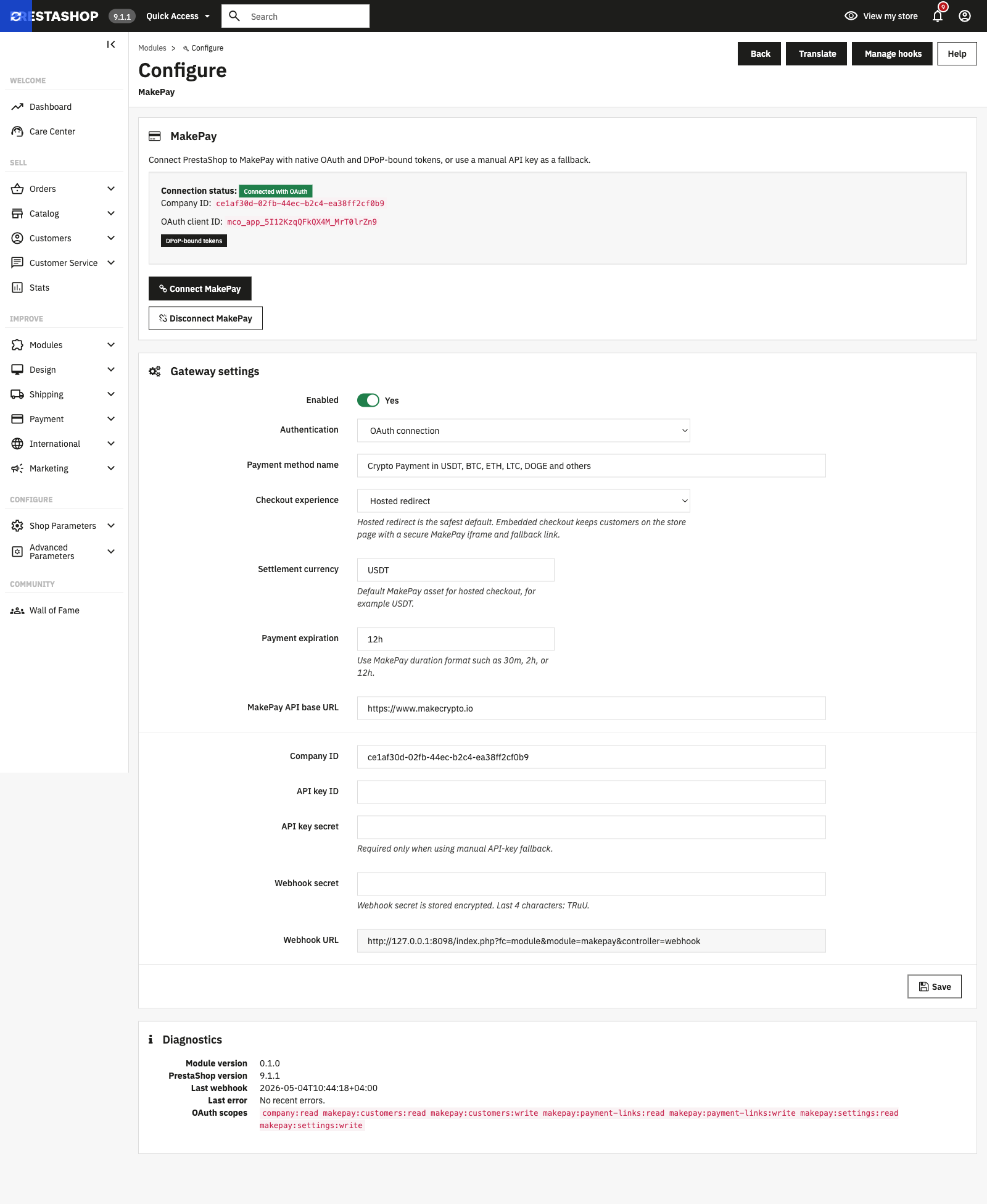
Use Connect MakePay for normal setup. It links this PrestaShop store to the MakeCrypto company you choose and can be disconnected later without changing store code.
- In the MakePay module configuration, keep MakePay API base URL set to
https://www.makecrypto.io. - Click Connect MakePay.
- Sign in to MakeCrypto if prompted, choose the company you prepared, and approve the requested access.
- After returning to PrestaShop, confirm that the module shows the store as connected.
- Save gateway settings and keep the module enabled.
During connection, the module automatically registers the public webhook URL:
https://your-store.example/module/makepay/webhook
Keep this endpoint reachable from the public internet. Security modules,
firewalls, and caching rules should allow signed POST requests to that URL.
How the connection works
The Connect MakePay button opens MakeCrypto in a browser tab. You sign in, choose the company that should receive payments, review the requested access, and return to PrestaShop after approval. The module then saves the connection, registers the webhook URL, and keeps settings separate for each shop context in multistore installs.
No shared app secret or developer app setup is required for PrestaShop.
Gateway settings
Review these settings in Modules > Module Manager > MakePay > Configure.
| Setting | What it does |
|---|---|
| Enabled | Turns the MakePay payment method on or off at checkout. |
| Authentication | Use the default connected mode for normal installs. Manual API key fallback is for support-led recovery. |
| Payment method name | The name customers see at checkout, for example Crypto Payment in USDT, BTC, ETH, LTC, DOGE and others. |
| Checkout experience | Use Hosted redirect for the most reliable flow, or Embedded checkout page to show MakePay in a secure iframe page with a hosted-link fallback. |
| Settlement currency | Preferred MakePay asset such as USDT. MakePay resolves the chain from company settings where possible. |
| Payment expiration | Hosted checkout lifetime, for example 30m, 2h, or 12h. |
| MakePay API base URL | Use https://www.makecrypto.io for production. |
| Company ID / API key ID / API key secret | Required only for manual API-key fallback. |
| Webhook secret | Set automatically during connection. Enter manually only for fallback mode. |
Order states
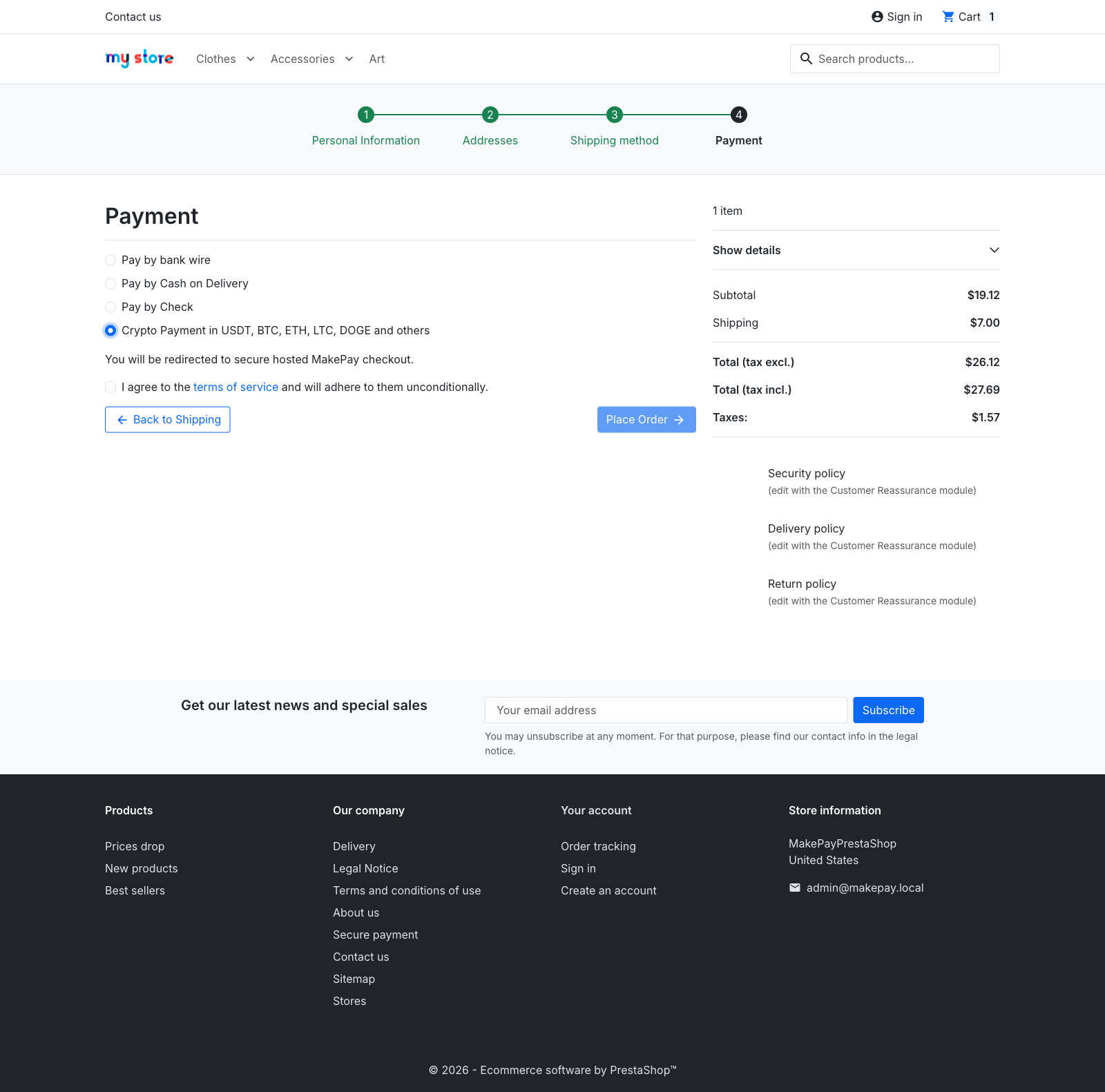
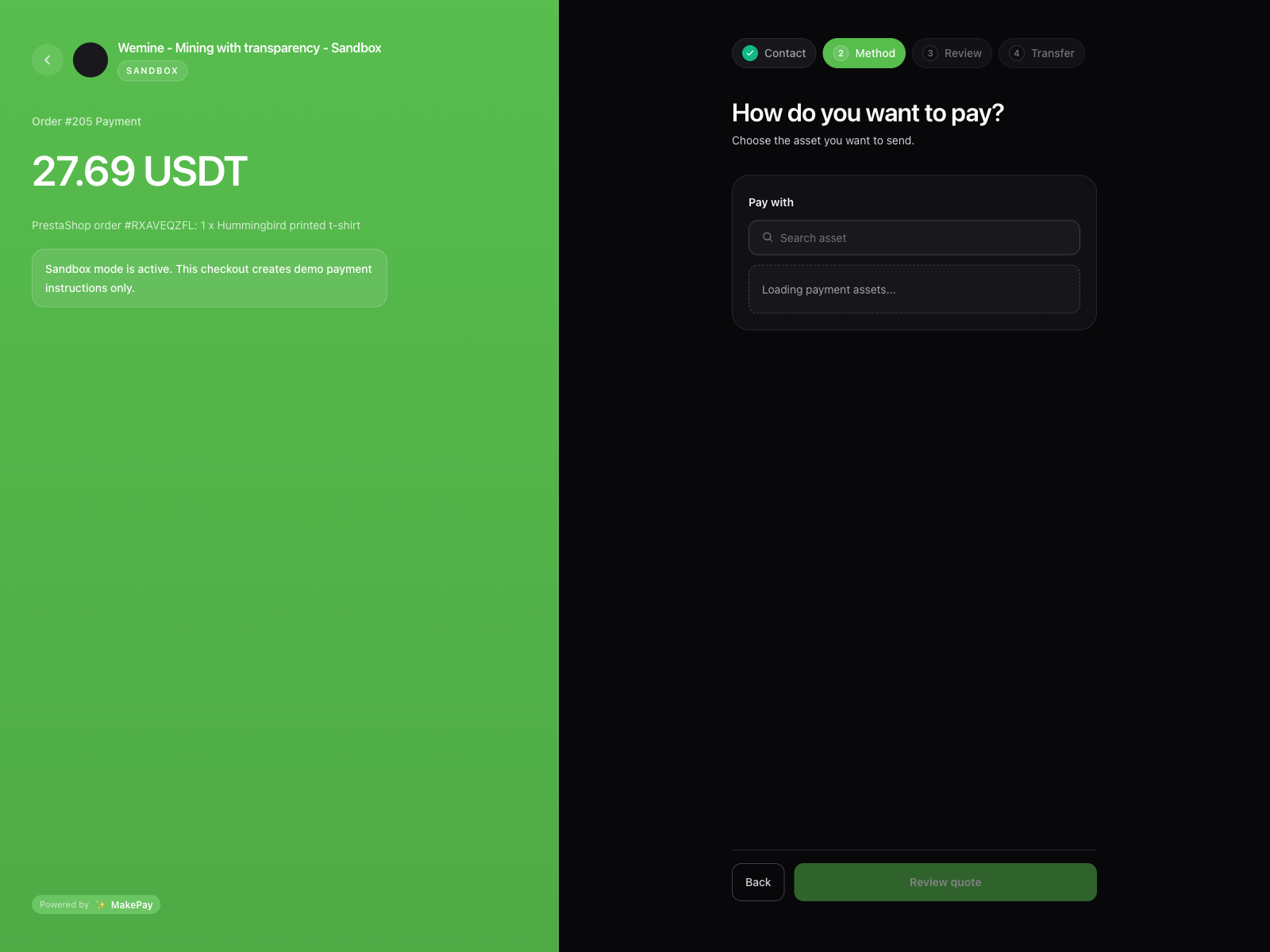
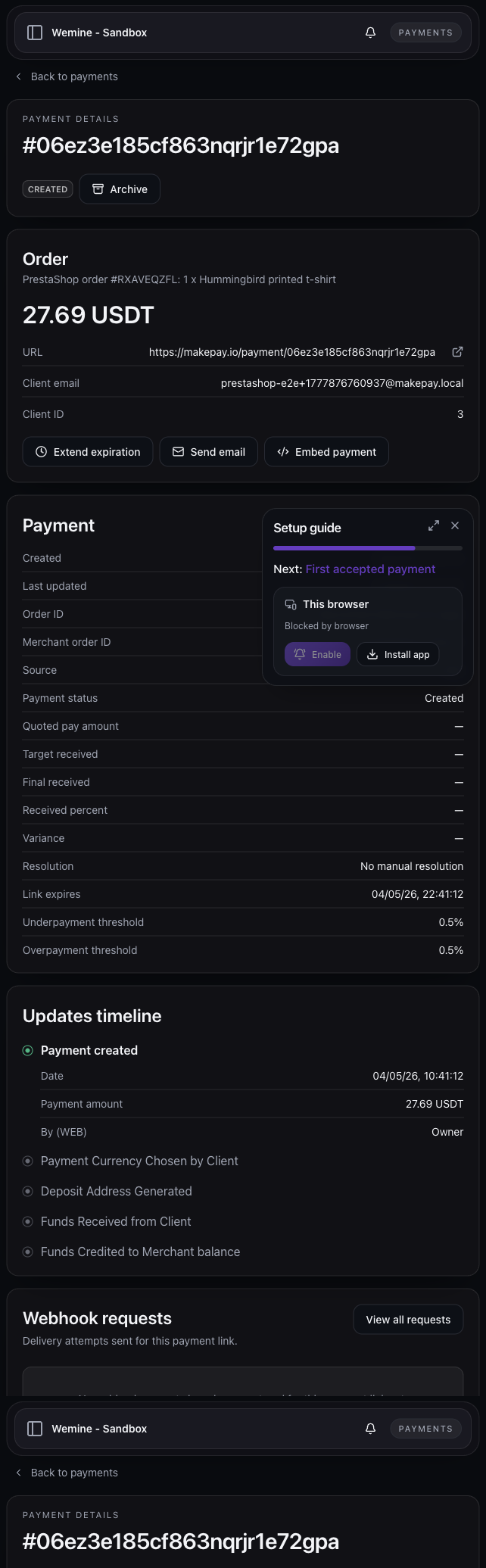
On checkout, the module creates a PrestaShop order in the custom Awaiting MakePay payment state and opens the selected MakePay checkout experience.
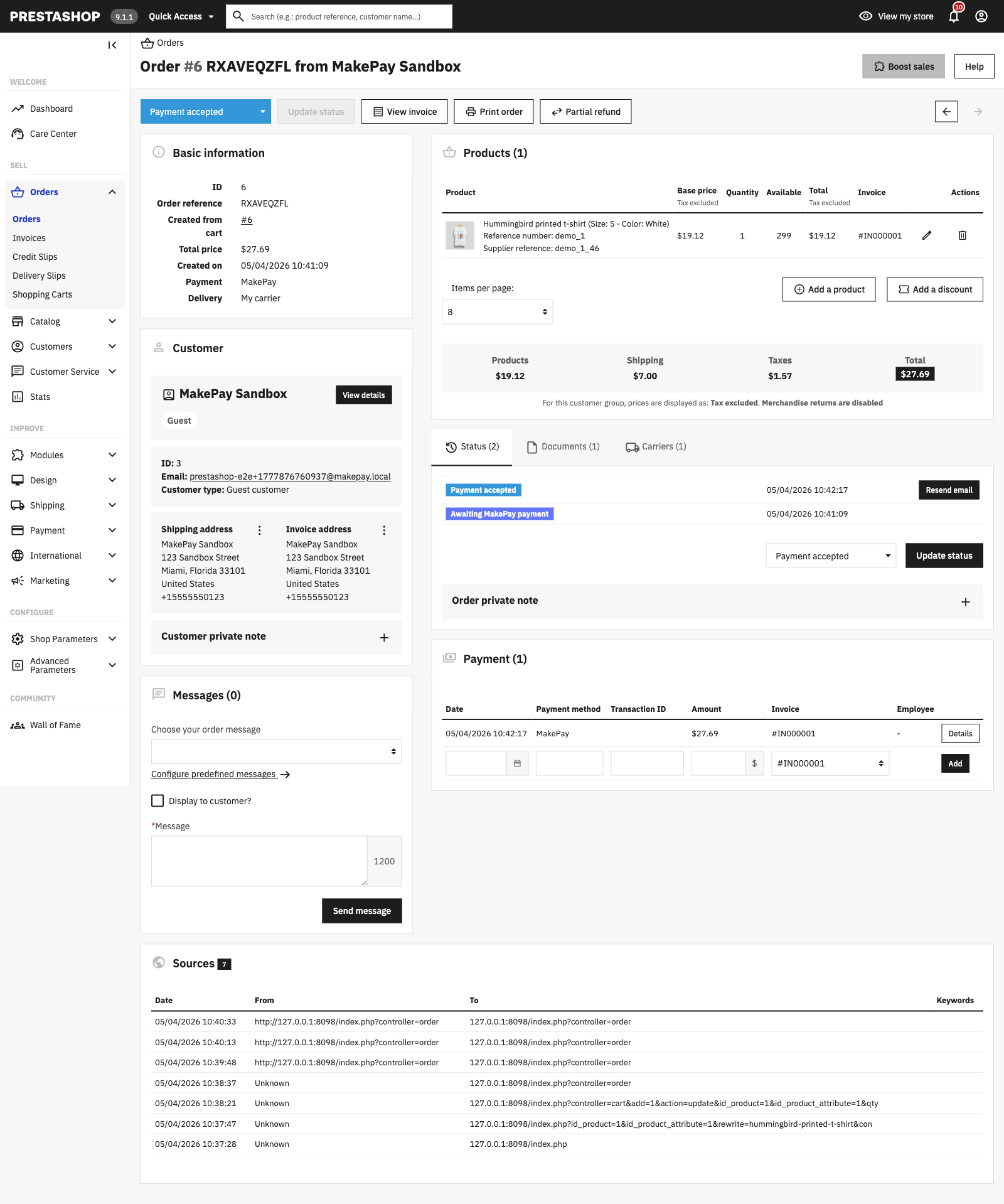
Webhook status mapping:
| MakePay status | PrestaShop state |
|---|---|
paid, completed, confirmed, succeeded | Payment accepted |
refunded, refund | Refunded |
failed, expired, chargeback | Payment error |
cancelled, canceled | Canceled |
| other in-progress statuses | Awaiting MakePay payment |
The module writes private order messages with webhook status, payment UID, amount, asset, and payment URL when present in the MakePay webhook payload.
Security and permissions
The PrestaShop connection requests:
company:readmakepay:payment-links:readmakepay:payment-links:writemakepay:customers:readmakepay:customers:writemakepay:settings:readmakepay:settings:write
It cannot send wallet funds or create legacy API keys.
Webhook updates are signed by MakePay and verified before any PrestaShop order state changes. Store administrators can revoke the connection in MakeCrypto under Integrations > Connected apps, or disconnect it from the PrestaShop module configuration page.
Manual API-key fallback
Use manual API-key mode only if Connect MakePay is unavailable or MakeCrypto support asks you to use it.
- In MakeCrypto, open Integrations > API Integrations.
- Create or choose a MakePay API key for the same company that receives store payments.
- Copy the company ID, API key ID, API key secret, and webhook secret.
- In PrestaShop, open Modules > Module Manager > MakePay > Configure.
- Set Authentication to Manual API key fallback.
- Paste the credentials and save.
Keep API key secrets out of theme files, client-side scripts, and public support tickets. Connect MakePay is still preferred for normal store operation.
Troubleshooting
If Connect MakePay fails, confirm that your Back Office URL uses HTTPS,
your store can make outbound HTTPS requests to https://www.makecrypto.io, and
the employee account can configure modules.
If the payment method does not appear at checkout, confirm that the module is active, Enabled is turned on, and the store is connected to MakePay or has valid manual API-key credentials.
If checkout shows a settlement or onboarding error, return to MakeCrypto and complete Wallet > Balances > Set up settlement for the company connected to the store.
If orders do not update after payment, check Integrations > Webhook requests
in MakeCrypto for delivery attempts. The PrestaShop webhook endpoint should
return a 2xx response. Also check that hosting firewalls are not blocking
POST requests to /module/makepay/webhook.
If you change the store domain, Back Office domain, or move the shop to a new environment, disconnect and reconnect MakePay so the connection callback and webhook URLs match the current store.